Advanced setup
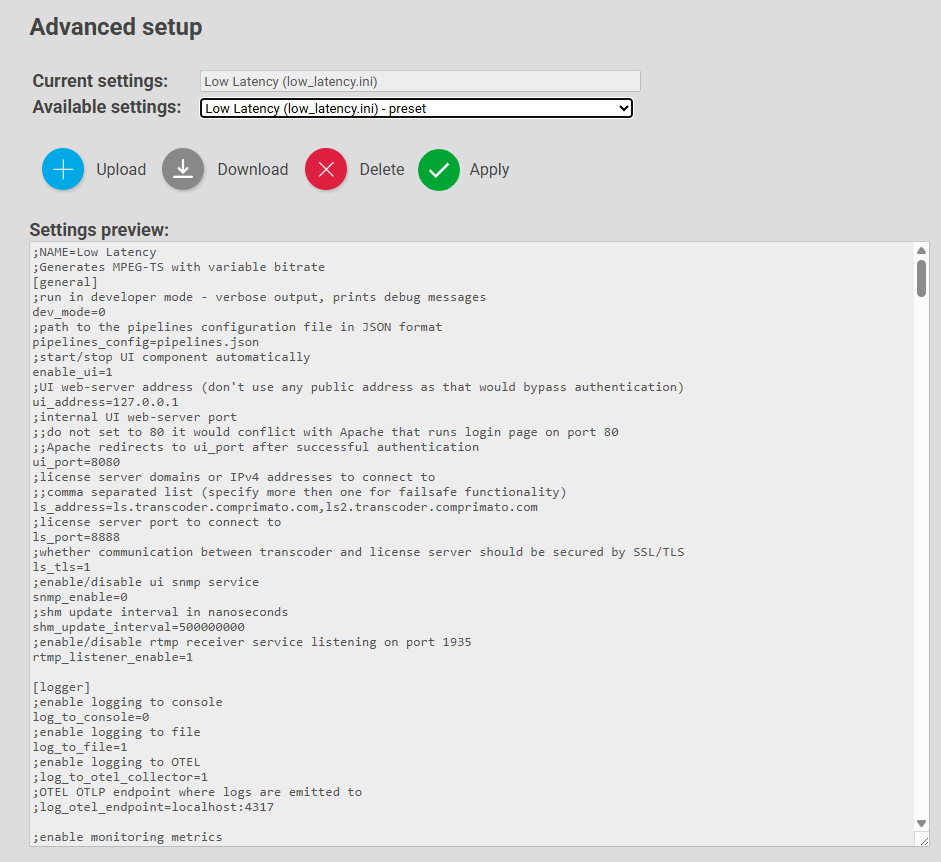
Twenty-One Encoder can be fine tuned from the Advanced Setup page found under Setup.
Advanced settings allow you to adjust other Twenty-one encoder parameters such as debug logging, low level performance and quality tuning, the behavior of NVENC, etc.
It’s advised to consult configuration adjustments in the advanced settings .ini files with Comprimato Support or your reseller.
Advanced setup presets
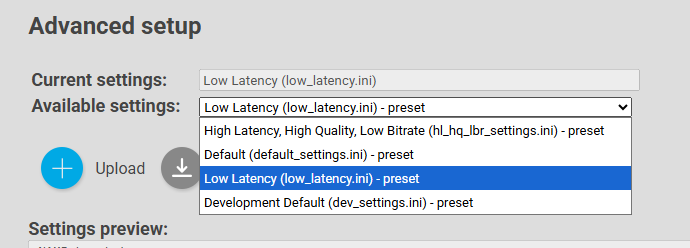
Twenty-One Encoder Appliance has four advanced settings presets available:
- Default - Slower muxing speed, B-frame encoding, adds 2000ms to latency
- Low Latency - Faster muxing speed, enables low latency configuration.
- High Latency, High Quality, Low Bitrate - Slowest muxing speed, highest quality
- UHD Default - Recommended for ALL UHD use cases.
Near to Available settings is a drop-down menu as you can see in Figure 10 – you can select any preset.
Note: New presets will appear in the drop-down menu, if you upload a new one.
How to adjust and upload settings.ini
- Log in to the Twenty-One Encoder user interface.
- Mouse over "Setup" in the upper right corner.
- From the drop-down menu, click on "Advanced Setup".
- Use the "Download" button to download the selected settings.ini file.
- settings.ini can be edited in any text editor.
- Overwrite the value for the required items.
- Save and close the settings.ini file.
- Upload the settings.ini file to Twenty-One Encoder using the "Upload" button.
- Apply the uploaded settings.ini using the "Apply" button.
- You will be asked for a restart, make it so.