Input configuration and detection
Figure 25 shows a dialogue window to select the input stream source type. You can choose the input type.
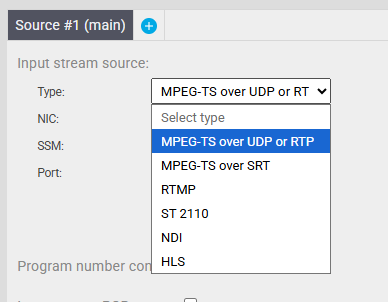
Twenty-one encoder can automatically distinguish MPEG-TS streams carried over plain UDP from those carried over RTP.
For network data, you need to select the network interface and enter the IP address and port number at which data are received. An example configuration is shown in Figure 26. The video configuration covers basic parameters such as resolution, bit depth, color sampling and frame rate. For SRT configuration, see section 4.0 of this document. For MPTS configuration, see section 3.2 of this document. For RTMP(S) configuration, see section 5.0 of this document.
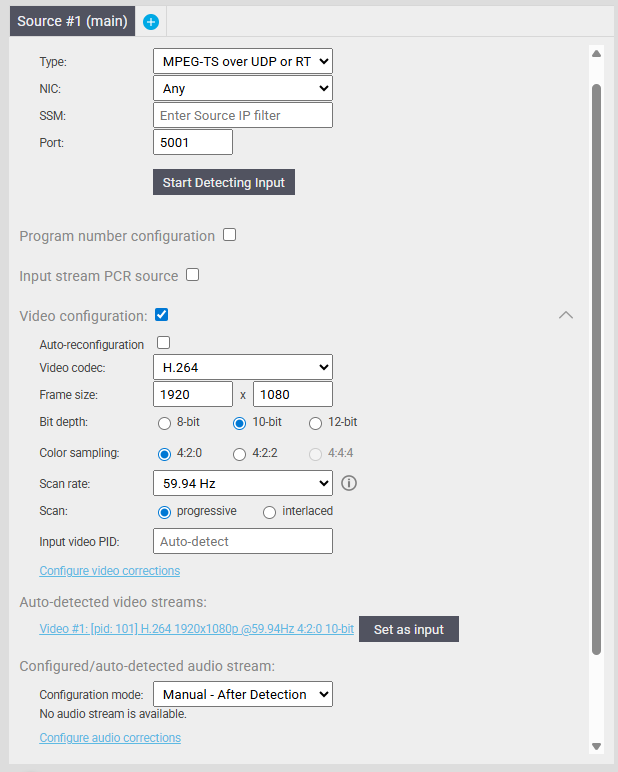
Twenty-one encoder can auto-detect the incoming video signal. When configuring a new pipeline, first select the appropriate Input stream source type with a valid IP:port combination on the correct ethernet card. Set the Compliance with field to Auto-detected and click on Apply configuration in the right bottom corner of the web page. This confirmation will trigger the auto-detection system. Following, below the Input stream source fields, you will see the detected input stream. The settings are automatically filled into configuration fields if you click on the detected line.
In the background, the system performs a check on whether the auto-detected parameters match the user input. If these do not match correctly, an error will be displayed once you try to apply the faulty configuration.
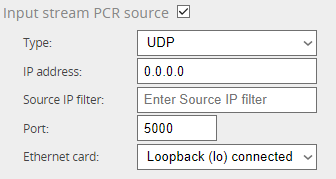
If you need to use a PCR synchronization from a different source than the MPEG Transport Stream you are processing, you can do so by checking the Input stream PCR source box and filling out the configuration.